Tools (a few menu items explained)
· Direct Typing in ANY Windows application
· 'Sri' problem
If the character 'Sri' does not appear properly when you type (in Tscii) in MS-Word and you see only the
quote character in place of 'Sri', then please
understand that this is not a problem due to Azhagi. The solution exists in the
AutoCorrect options of MS-Word. So, if you are using MS-Word 2002/2003,
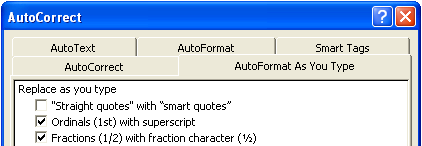
click on 'Tools - > AutoCorrect Options...' in MS-Word. A screen similar to
what you see below will appear.
As you notice, the tab (AutoFormat As You Type) has been clicked and one of
the options has been unchecked which is ["Straight quotes" with "smart
quotes"]. If this is done, then 'Sri' will appear properly as you type. 'Sri' is the
only character for which problem has been reported so far. If you face problem
with any other character, kindly let me know.
Please note that if required, you have to effect the setting suggested above in
the option under 'AutoFormat' tab also.
If you use MS-Word 2007 and above, a solution similar to the above has to be
employed. i.e., you have to turn off the "Straight quotes with smart quotes"
option under 'AutoFormat As You Type'. To do the same:
1. Click the 'Office button' (the round button situated at the top left
corner) of MS-Word.
2. Thereafter click on 'Word Options'.
3. Click 'Proofing' on the left side and 'AutoCorrect Options' on the right.
4. Click on the tab captioned 'AutoFormat As You Type'.
5. Under 'Replace As You Type', UN-tick (i.e. clear/remove the tick of)
the checkbox for "Straight quotes with smart quotes". Click 'OK'.
Please note that the above change will be effected for all documents. If you
want it to be effected only when needed, for specific documents, please see
latest instructions (if any) at http://azhagi.com/helptips.html#SriProblem
· Titles and Options Setter
The options set here have no effect when you are doing Unicode Typing since
Extended Editing or Extended Mode is never used (as of now) during Unicode Typing.
If you are able to understand these and use them during Tscii Typing, kindly go ahead
and use them. They will increase your productivity. If you do not understand these,
then I suggest you not to make use of this Setter or Extended Editing or Extended
Mode. They are provided as extended facilities. So, absolutely no problems for you if
you do not use them.
· Reverse Transliteration
It is a sophisticated reverse transliterator by which the exact English phonetic
equivalent can be generated for Tscii Tamil texts. It is done in two steps. First, Azhagi
generates an almost matching phonetic equivalent in English. Thereafter, you replace
the dual sound syllables with the correct ones. Azhagi provides you a neat facility to do
this effortlessly.
· Popup Display in Tamil
You can use Alt-F10 to convert a line or portion or whole of the English text in the text
area of your current application to Tamil and get the generated Tamil text shown on a
new and separate pop-up window.
· Auto-Transliteration
Click here to know about this useful feature.
· Tutor's or Learner's Tamil Keypad
The learner's or tutor's Tamil keypad will open. To know how to operate it, click here.
· Re-Transliterate
You can click on this any time to retransliterate the English text from the start once
again. This will be useful if ever a rare synchronisation error occurs. Read 'Known
issues' topic in this context.
· Convert Tamil Text to TAB encoding
SaiMeera is a TAB font. If you are already a regular user of a font of this standard, you
can convert your Tamil text (in Tscii [e.g. SaiIndira font] in TTA of Azhagi) to this font.
| Document version 6.3.1 | Copyright 2000-2012 Azhagi.com |