

get_app
Installation steps for 'portable' version of Azhagi+
Latest version: 10.45 U10 | Release Date: 07 Jan 2026
Portable Azhagi+
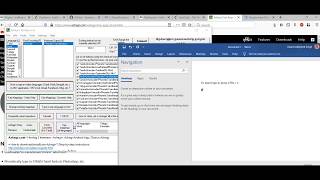
YouTube video demo (தமிழில்)
- Packed with features.
- Input in 100+ languages.
- No need to install it at all.
- Extract and run. That is it.
- Carry it even in your pen-drive.
- Use it in any Windows system, any time.
- Use your same preferred 'Settings' in any system.
- Exactly same as the Setup.exe version, functionally.
- As an added advantage, you will never face one particular rare issue.
- Plus, portable Azhagi+ gets added with extra xml/txt files now and then.
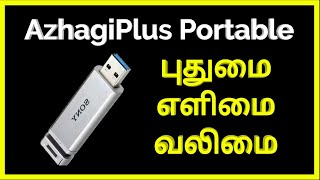
How to download, extract and use the 'portable' version of Azhagi+? - STEPS
- STEP 1
- STEP 2
Navigate to the folder in which you have downloaded 'AzhagiPlus-Portable.zip'.
- STEP 3
Extract the contents of "AzhagiPlus-Portable.zip" into a folder of your choice. After extraction, you will see a directory named "AzhagiPlus-Porto". You can copy that folder and paste it in any other normal, non-system folder. For e.g., you can paste it in a folder like "C:\MyFavoritePortableApplications\". But, you shall not paste it in system folders like "C:\Program Files (x86)".
If you already have an earlier version of Azhagi+ (10.33, 10.40, etc.) in your system, kindly uninstall the same.
Note: (For those who are using Windows XP alone)
If you had not used any earlier releases (10.33, 10.40, etc.) of the non-portable version of Azhagi+ so far, it is better you download and install the current non-portable version of Azhagi+ available at azhagi.com/index.php#download-azp once and then uninstall it immediately.
- STEP 4
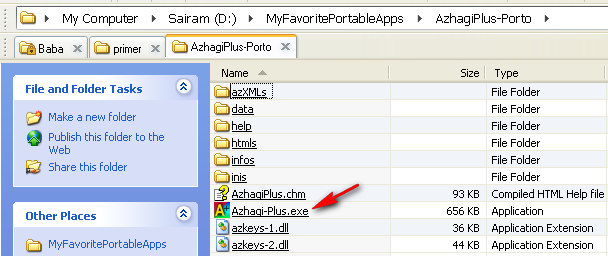
If you open the "AzhagiPlus-Porto folder", you can see some "Folders and Files" inside it. Of these, there will be a file bearing the icon of AzhagiPlus. Click the same. For better understanding, kindly see the screenshot below.
- STEP 5
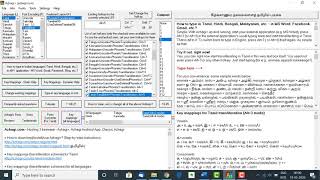
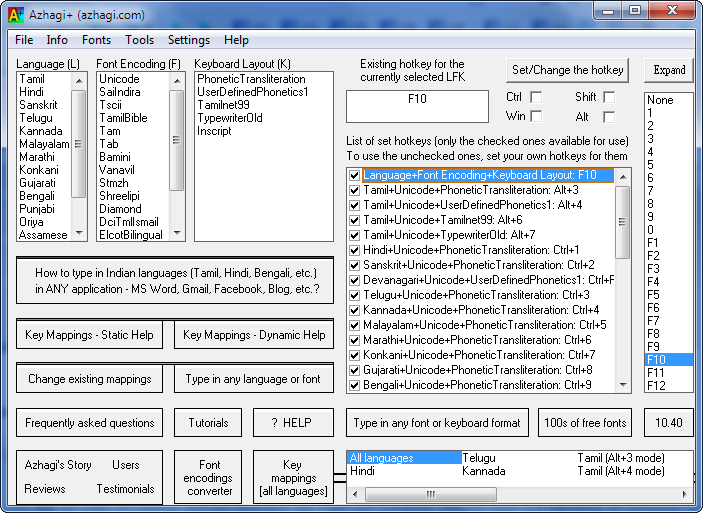
Now, Azhagi+'s starting screen will get displayed, as shown below.
- STEP 6
Please do not click on any of the buttons, etc. which you see on Azhagi+'s starting screen. Just minimize the screen. Please do not close the application. Now, you can open any external application (MS-Word, Excel, Notepad, Wordpad, Gmail, etc., etc., etc.), press Alt3 (or Alt4) in that application's usual editing area and start typing in Tamil. That is all to it. So simple. Isn't it? And, as you keep typing in Tamil, if you wish to type again in English, just press the same Alt3(Alt4)##. Immediately you can start typing in English. It is that easy. There is a small video demo (36 seconds only) too, here, showcasing this very simple procedure.
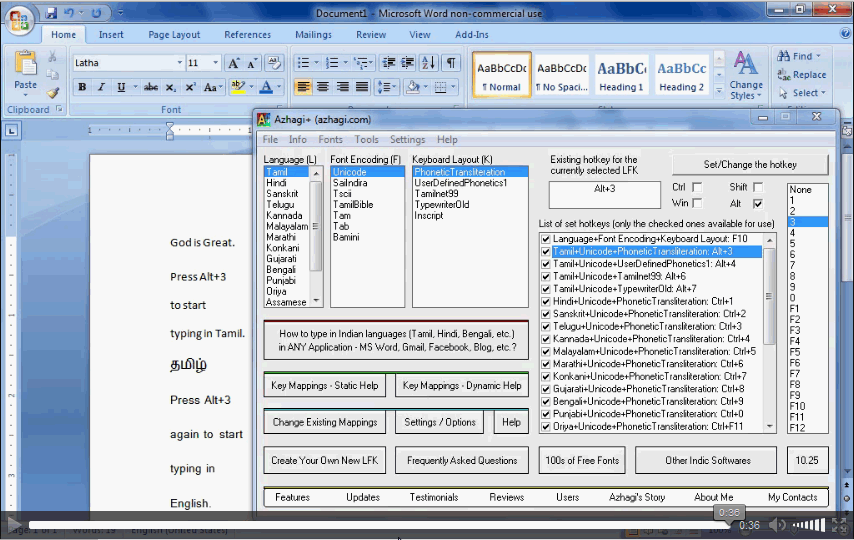
Well, if you know Indian languages other than Tamil and wish to type in them too, it is easy again. As you keep typing in English (or Tamil), if you press Ctrl1, you can start typing in Hindi. If you press Ctrl2, you can start typing in Sanskrit. Ctrl3 - Telugu, Ctrl4 - Kannada, Ctrl5 - Malayalam, Ctrl6 - Marathi, Ctrl7 - Konkani, Ctrl8 - Gujarati, Ctrl9 - Bengali, Ctrl0 - Punjabi, CtrlF11 - Oriya, CtrlF12 - Assamese, Alt1 - SaiIndira, Alt5 - TamilBible, Alt7 - Old Tamil Typewriter, Alt6 - Tamilnet99, and so on.
Truly speaking, you can extend Azhagi+ to type in ALL the world languages. This is possible using a very special feature of Azhagi+. To get details on the same, visit this page. You may also join Azhagi's Facebook Group and see this post.
(##) In order to type using Azhagi's phonetic transliteration scheme (it's very easy, natural, intuitive and flexible), Azhagi+ users press Alt3 only always. Only if you are already accustomed to the phonetic scheme of softwares like 'NHM Writer', 'eKalappai', etc., you have to press "Alt4". i.e. "Alt4" only is your hotkey always. Not Alt3. Please keep this in mind.
- NOTES
- If for some reasons^^, pressing Alt3 (Ctrl1, etc.) is not working at all, then use the 'global hotkey F10' to type in Indian languages.
(^^) One of the reasons could be that you changed the default hotkey (e.g. Alt+3) to some other hotkey, by mistake or without your knowledge. To set a hotkey back to it's default value, please see this section. One other reason could be that you (as a senior citizen) are not knowing how to press a combined key like "Alt3". Yet another reason could be that you are using the number pad to press '3'. If so, you should not press '3' from the number pad. You should press the regular '3' which you find at the top row of number keys (below the function keys). i.e. you should press the '3' under the '#' sign.
- If you face any other issues while using Azhagi+, please see this CHECKLIST first. And, if you are using Windows XP, then please read this, without fail.
- The caps lock has no effect while you type. So, to type capital letters, you should use the 'shift' key only. For e.g. to type 'N' (capital 'N'), you have to necessarily press 'Shift+n'.
- Azhagi's "English-to-Tamil Phonetic Key Mappings Table" can be seen here. The full list of key mappings for all languages can be seen here.
- If for some reasons^^, pressing Alt3 (Ctrl1, etc.) is not working at all, then use the 'global hotkey F10' to type in Indian languages.

-
Note: I do update the above portable version now and then. It was last updated on 11-June-2026. Availing this version, one can type in 100+ world languages. Totally, one can type in 719 'Language + Font + Keyboard' combos. 691 of them are for Tamil. For some related info, please see az-updates.php and azhagi.com/alec.
AUTO-START Azhagi+
- The basic steps needed to start typing using Azhagi+ are just the above alone. Nevertheless, if you read the important notes, useful tips and additional information given below, that would be of great help to you. Even if you feel that you may not need these info, somebody else might need them. At least for their benefit, kindly get to know these info.
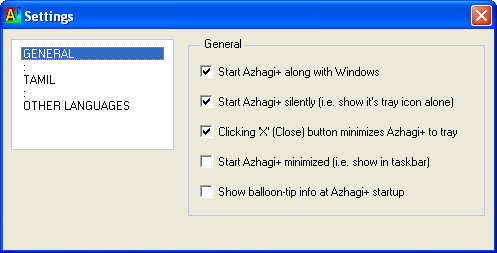
Particularly, if you open Azhagi+'s 'Settings' screen and tick certain options as shown in the screenshot below, the process of 'starting & using' Azhagi+ will become very easy for you. You can AutoStart Azhagi+ along with Windows and keep it as a small icon in the system tray, always. To know how to do this, please visit and see oper-plus.php#settings. In this way, if you make Azhagi+ auto-start along with Windows, then whenever you wish to type in other languages (or whenever you wish to keep typing alternately in English and other languages), the only thing you have to do is to just press an hotkey like Alt3. That's all. Too simple. Is it not?
Important notes
- Please click here
Useful tips
- Is it that every time I have to navigate to Azhagi+'s folder and click on "Azhagi-Plus.exe" to start Azhagi+?
No. Not necessary. You can create a Shortcut to "Azhagi-Plus.exe" in the desktop. Thereafter, it is enough if you click on the shortcut, to start Azhagi+.
- Please click here for more tips.
Advantages
- If you use the portable version of Azhagi+, you will never face one particular rare issue. This is a very big advantage of portable Azhagi+ over the setup.exe version of Azhagi+. Plus, you get to use additional XML and TXT files. Please read the following section for details.
Extra XML and Text files, New Fonts
- If you use the portable version
of Azhagi+, you will get to use extra xml and text files, as and when I add them to it. As of 11-June-2026, the following files are present extra in the portable version of Azhagi+, compared to its setup.exe version. The '_km' in the file names refers to 'keyman'.
AzhagiPlus-Tamil-Unicode-Typewriter_km.xml
AzhagiPlus-Tamil-Stmzh-Typewriter_km.xml
AzhagiPlus-Tamil-Stmzh_P-Typewriter_km.xml
Apart from the above, Shri Gopalan sir has created many more text and XML files, most of them for Tamil, with a few for other languages (Malayalam, Telugu, Kannada, etc.). All of them can be freely used in Azhagi+. You can email or whatsapp Gopalan sir to obtain them freely. Once received, you can just paste them in the 'azXMLs' folder of Azhagi+ and restart Azhagi+. That is all to it. You can thereafter start typing in those LFKs too, seamlessly. If at all any changes are required by you in those files, you can let know Gopalan Sir, and he will happily make those necessary changes for you, for free.
The extra Tamil font encodings covered in the aforesaid text and XML files are:
Agathiar, Anangu, Akruti, Dinak, IndoWeb, Jeeva, Kalakal, Mp, Mannar, Nc_Baamini, ShreelipiNxt, TMFlorida, Tnames and US.
The Tamil keyboard layouts covered in the aforesaid text and XML files are:
PhoneticTransliteration, Phonetic, Typewriter_km, TypewriterNew, etc.
The existing Tamil font encodings for which Typewriter_km, TypewriterNew, etc. XML files have been createad by Gopalan sir, are:
Unicode, Stmzh, Bamini, Vanavil, TAB, Elango, Ka, ChenetPlatinum, LtTm, and many more.
Note-1: If you need text and XML files for any more Tamil (or other language) font encodings and keyboard layouts, you can contact Gopalan sir and he will happily create them for you, for free.
Note-2: If you need new and fresh fonts in any language for any specific need (for e.g., a font for writing Tamil with Sanskrit svaras, Musical notations, Latin diacritics, Sanskrit diacritics, etc.), Gopalan sir can create them too for you, for free, as and when his time permits.
Note-3: Gopalan sir's phone, email, facebook id, etc. are here - free-support-for-azhagi-regarding-shri-gopalan-sir.php
Additional information
- Please click here
Contacts
- Please see contacts.php