

language
UNICODE
Related website: unicode.org
Topics covered in this page:
Click here for easy, step-by-step instructions.
In Windows 7|Vista, Unicode support for Indian languages is enabled automatically upon installation and hence user does not need to enable any settings, as in the case of WinXP/2K
I provide herebelow two methods (A & B) to enable Unicode fully in your Windows XP system(s). Please note that if the condition mentioned at 'Step 4 under Method B' is already met, then it means your system is already enabled for Unicode fully and hence you need not do anything further.
Method A
Method B (RECOMMENDED)
Important Note: In WinXP alone, for MS-Word and MS-Powerpoint, the procedure is different. Click here to know the same. If it is for any other application, read the steps below. Also, for Unicode typing in Adobe InDesign, Adobe Photoshop, Adobe PageMaker, Corel's CorelDraw, etc., please see important information here.
Important Note: There are various ways by which you can effect Unicode conversion in Azhagi. Only one of them is explained below. For advanced modes and full details, click on 'Help->Unicode Help' menu item from the main opening screen of Azhagi and read the corresponding topic(s).
Please note:
With the utilities available in Azhagi' unicode converter, you can convert not only Tamil text typed in Azhagi but also external Html/Text/JavaScript files (containing Tscii Tamil text). For achieving reverse conversion (i.e. Unicode to Tscii), you can click on 'File->Fonts converter' and make use of the options available therein. You can ofcourse do 'Tscii->Unicode' coversion also using this 'Fonts converter' tool.
3. What are the immense benefits of Unicode?
Apart from the facility to straightaway start typing in any application window without setting/changing font to any Tamil font (i.e. even if your current application font is set to an English font like Arial, you can still straightaway start typing in Unicode Tamil. The font for your Tamil text is automatically chosen and set by your Windows operating system. There is no need for you to select/set it in advance), there are other very powerful features of Unicode like 'Find & Replace in Tamil', 'Sorting in Tamil', 'File names in Tamil', 'Search in Tamil in google, yahoo!, ...' etc. Click here to get to know them in detail.
4. What is Unicode all about?
If you want FULL and comprehensive details on what is Unicode, why Unicode, what are its powerful advantages, etc., then visit unicode.org.
5. How to effect Non-Unicode (Tscii) Input in all Windows applications?
To get to know how to effect Non-Unicode input in all Windows applications, click here.
6. Power tools of Azhagi
To know all about Auto transliterator, Reverse transliterator, Dual-screen transliterator and SAT transliterator, click here.
 If you are using 'Azhagi+' (AzhagiPlus is NOT the same as Azhagi)
Important Note:
Method A
Method B
Method C (Recommended method, as it is based on the one suggested by Microsoft, worldwide)
Final note: When using Azhagi or Azhagi+ to type in Unicode, 'MS Office 2000' and earlier versions may not support Unicode typing.
Topics covered in this page:
- Effecting Unicode Tamil Input in MS-Word and PowerPoint
- Effecting Unicode Tamil Input in Adobe InDesign, Adobe Photoshop, Adobe PageMaker, Corel's CorelDraw, etc.
- Enabling Unicode in Windows 7 or Vista
- How to enable Unicode fully in Windows XP?
- How to activate the language bar in WinXP?
- How to effect 'Direct Unicode Tamil Input' in ALL Windows applications?
- How to effect Unicode conversion?
- What are the immense benefits of Unicode?
- What is Unicode all about?
- How to effect Non-Unicode (Tscii) input in all Windows applications?
- Power tools - Auto transliterator, Reverse transliterator, Dual-screen transliterator, SAT transliterator - CLICK here
Typing in Unicode Tamil in MS-Word and MS-PowerPoint
Click here for easy, step-by-step instructions. Enabling Unicode in Windows 7/Vista
In Windows 7|Vista, Unicode support for Indian languages is enabled automatically upon installation and hence user does not need to enable any settings, as in the case of WinXP/2K Enabling Unicode fully in Windows XP
I provide herebelow two methods (A & B) to enable Unicode fully in your Windows XP system(s). Please note that if the condition mentioned at 'Step 4 under Method B' is already met, then it means your system is already enabled for Unicode fully and hence you need not do anything further.Method A
- Icomplex
Download the aforementioned Icomplex tool from www.omicronlab.com/tools.html. Read till the end, the instructions provided in the omicronlab webpage, to install and use the aforementioned Icomplex tool - to enable Unicode fully in your computer.
- This method was suggested by my friend (late)Mr.Anthony. Kindly visit the aforementioned webpage, do the needful as explained above (in Step 1) and you can see your computer fully Unicode-enabled within 5 minutes.
Note: The abovementioned omicronlab webpage also contains a few other useful tools (e.g. Font Fixer). Have a thorough look.
Method B (RECOMMENDED)
- This method is the one suggested by Microsoft, worldwide. Please follow the simple instructions below and your computer will become fully Unicode-enabled within 5 minutes.
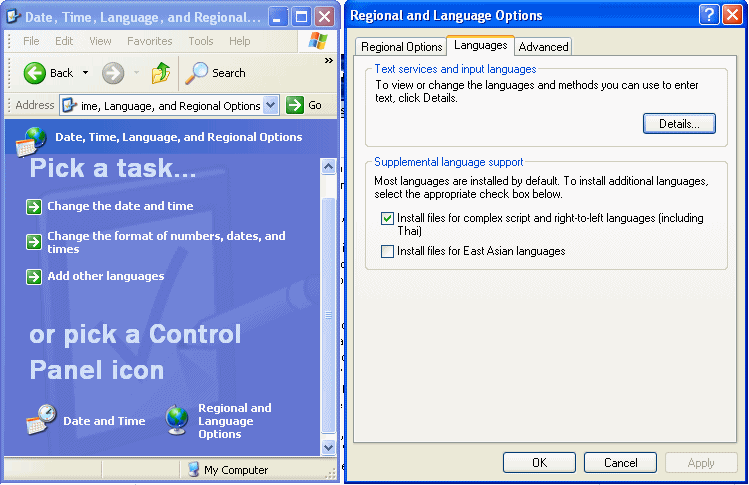
- Click on "Start->Control Panel->(Date, Time, Language and Regional Options)->Regional and Language Options"
- Click on 'Languages' tab (next to 'Regional Options') at the top
- In 'Supplemental language support', see whether "Install files for complex script and right to left languages (including thai)" is kept ticked.
- If ticked, leave it as it is. This means your computer is already fully enabled for Unicode. You need not do anything further and skip the steps below.
- If not ticked, tick it (but please read the 'Important Note' below before ticking). It will install the required files and ask you to reboot.
Important Note: Windows XP operating system installation CD may be required for the above process. In case you have misplaced or lost your WinXP CD, contact your PC vendor (i.e. the company which supplied the computer to you) and they should be able to help you out. Also, if you had bought your PC from a reputed vendor, note that such vendors often leave a copy of the full XP CD on your hard drive (say as c:\i386, d:\winxpBack\i386 etc.). If you are able to spot such a directory in your hard drive, then when XP CD is sought by your OS during the above process, specify the location of the CD to this directory (say c:\1386). Also, once the above process is over, I suggest you to take a backup of this directory in a CD-ROM and keep the CD safe so that it can be used in the future, whenever the need arises to effect the above process.
- You will have to restart the machine for the new setting to take effect.
See sample screen'snapshot below for better understanding.
How to activate the language bar in WinXP?
- In normal circumstances, the following is enough:
- Right-click on an empty area of the taskbar of your system.
- A menu will get displayed.
- Navigate to 'Toolbars' in that menu and select 'Language Bar'.
- Language bar will get displayed at the bottom right top of your taskbar.
- In case the above did not help, then:
- Click on "Start->Control Panel->(Date, Time, Language and Regional Options)->Regional and Language Options".
- Click on 'Languages' tab (next to 'Regional Options') at the top.
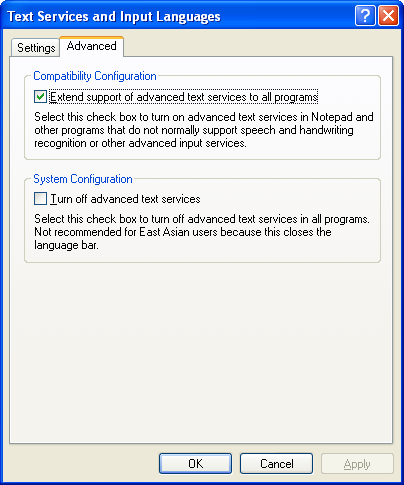
- Click on 'Details' button.
- The 'Text Services and Input Languages' screen will get displayed.
- Click on 'Advanced' tab at the top.
- Then, refer to the snapshot below. As in the snapshot, the first option should be ticked and the second option should ALWAYS remain unticked. Once this setting is correct, then you can choose language bar from taskbar and see it visible on your screen.
1. How to effect 'Direct Unicode Tamil Input' in ALL Windows applications?
Important Note: In WinXP alone, for MS-Word and MS-Powerpoint, the procedure is different. Click here to know the same. If it is for any other application, read the steps below. Also, for Unicode typing in Adobe InDesign, Adobe Photoshop, Adobe PageMaker, Corel's CorelDraw, etc., please see important information here.
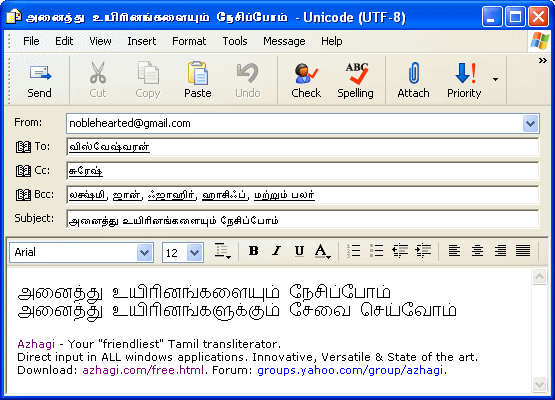
- Start Azhagi.
- Right click on Azhagi's tray icon (you may find it at the right bottom of your screen, usually near the date/time indicator) and tick 'Unicode Input'. Alternatively, you can click on Azhagi's 'Preferences' menu and then tick on 'Unicode Input'.
- Start your external application, say 'Outlook Express'. Open a 'New Message' window.
- In the message area, press 'F10'. Azhagi's tray icon will change color to red.
[Note: If you are using a LAPTOP, please read this help tip regarding F10 key, without fail.]
- Start typing in English and you will see it appearing in Unicode Tamil.
[Note: Latha is the font automatically chosen by Windows, whenever you type in Unicode. If you find a font by name 'Arial Unicode MS' in your system, you might use that too but it is advisable to use Latha itself as content remains undisturbed across all machines. Apart from these, there are 100s of other free Unicode fonts. For samples, details and download links, see https://azhagi.com/freefonts.php
- Press F10 again, to continue to type in English.
(See sample screen'snapshot below for better understanding)
- If you wish to change your typing mode from 'Phonetic' to 'Tamil Typewriter' or 'Tamilnet99', click on 'Preferences->Change Keyboard Layout' menu item in Azhagi's opening screen and choose your preferred layout. Alternately, you can also right click on Azhagi's system tray operating icon, move your mouse to 'Typing Mode' and select the preferred layout.
Note: In WinXP alone, for MS-Word and MS-Powerpoint, the procedure is different and also some extra settings may be required to be effected before you commence 'Direct Unicode Typing' in them. Click here to know the same.
Important Note: There are various ways by which you can effect Unicode conversion in Azhagi. Only one of them is explained below. For advanced modes and full details, click on 'Help->Unicode Help' menu item from the main opening screen of Azhagi and read the corresponding topic(s).
- Type* out your Tamil text in Tscii using Azhagi.
- Click on 'File' menu of Azhagi.
- Click on 'Convert to Unicode' and then on 'Choose conversion mode before converting'
(Note: If you click on 'Convert to Unicode->Convert immediately', your text will get converted to Unicode immediately and get displayed in your browser as an html page).
- In the 'Unicode Converter' screen that opens, click on the button 'Plain Text' and follow the instructions - as such, you will have to just press 'OK', 'Yes' and 'OK' in the three screens which follow one after the other.
- Your Tamil text (in Tscii) will get converted to Unicode and show up in your browser as an html page.
- You can copy/paste this Unicode text to wherever you wish to - say your Blog or Email client or Word processor.
Please note:
With the utilities available in Azhagi' unicode converter, you can convert not only Tamil text typed in Azhagi but also external Html/Text/JavaScript files (containing Tscii Tamil text). For achieving reverse conversion (i.e. Unicode to Tscii), you can click on 'File->Fonts converter' and make use of the options available therein. You can ofcourse do 'Tscii->Unicode' coversion also using this 'Fonts converter' tool.
3. What are the immense benefits of Unicode?
Apart from the facility to straightaway start typing in any application window without setting/changing font to any Tamil font (i.e. even if your current application font is set to an English font like Arial, you can still straightaway start typing in Unicode Tamil. The font for your Tamil text is automatically chosen and set by your Windows operating system. There is no need for you to select/set it in advance), there are other very powerful features of Unicode like 'Find & Replace in Tamil', 'Sorting in Tamil', 'File names in Tamil', 'Search in Tamil in google, yahoo!, ...' etc. Click here to get to know them in detail.
4. What is Unicode all about?
If you want FULL and comprehensive details on what is Unicode, why Unicode, what are its powerful advantages, etc., then visit unicode.org.
5. How to effect Non-Unicode (Tscii) Input in all Windows applications?
To get to know how to effect Non-Unicode input in all Windows applications, click here.
6. Power tools of Azhagi
To know all about Auto transliterator, Reverse transliterator, Dual-screen transliterator and SAT transliterator, click here.
Effecting 'Unicode' Tamil Input in MS-Word and MS-PowerPoint
If you are using 'Azhagi+' (AzhagiPlus is NOT the same as Azhagi)
- Start Azhagi+ (AzhagiPlus).
- Open MS-Word or MS-Powerpoint.
- Press the required hotkey (Alt+3 or F10 or F11).
- Type in English and see it in Unicode Tamil. That is all to it.
- Whatever be your operating system, the above is all that you need to type in Unicode Tamil in MS-Word/Powerpoint or ANY other application. As simple as that.
- In case the above steps do not help, please see detailed STEP-by-STEP instructions at oper-plus.php#dtany.
- If you are using a LAPTOP and pressing function-key hotkeys like 'F10' do not give the desired result, either read this help tip or change your hotkey. e.g. Alt+1.
- For differences between Azhagi+ and Azhagi, please see diffs.php.
If you are using 'Azhagi' in Windows Vista/7 and above:
- Ensure that 'Unicode input' is kept ticked under 'Preferences' menu of Azhagi.
- Open MS-Word or MS-Powerpoint.
- Press 'F10' and start transliterating/typing in Unicode Tamil. That is all to it.
[Note: If you are using a LAPTOP, please read this help tip regarding F10 key, without fail.]
- If (if at all) you face any difficulties, kindly switch over to using Azhagi+ (AzhagiPlus). Azhagi+ is NOT the same as Azhagi. Azhagi+ is a new product. For details, please see plus.azhagi.com. For step-by-step operational instructions, please see oper-plus.php. For differences between Azhagi+ and Azhagi, please see diffs.php.
If you are using 'Azhagi' in Windows XP:
Important Note:-
It is highly recommended that you download Azhagi+ (from downloads.php) and start using the same. In Azhagi+, the steps for doing direct Unicode Indic transliteration in ANY application (incl. MS-Word and MS-Powerpoint) are straightforward and very easy. There are only 4 simple steps - click here.
So, the following various methods (A, B and C) are needed only if you wish to persist doing unicode transliteration with 'Azhagi'. Azhagi+ (AzhagiPlus) is NOT the same as Azhagi. Azhagi+ is a new and different product. For details, please see plus.azhagi.com. For differences between Azhagi+ and Azhagi, please see diffs.php.
Method A
- Using 'Arial Unicode MS' font - click here for details.
Method B
- Using fonts similar to 'Arial Unicode MS' - click here for details.
Method C (Recommended method, as it is based on the one suggested by Microsoft, worldwide)
-
STEP 1:
- If you have not yet enabled Unicode in your computer, enable it first by reading the instructions for the same at the very top of this page. Only thereafter, read the steps below.
STEP 2:
- Click on "Start->Control Panel->(Date, Time, Language and Regional Options)->Regional and Language Options"
- Click on 'Languages' tab (next to 'Regional Options') at the top
- Click on 'Details' button
- Under 'Installed services' you will find your default Language/Keyboard selected - most often it will be EN and US
- Now, click on 'Add' button
- Click on the listbox titled 'Input language'. Scroll down or up the list to select 'Tamil'.
- Click on the listbox below it titled 'Keyboard layout/IME'. Scroll down or up the list to select 'US'.
(See sample screen'snapshot below for better understanding)
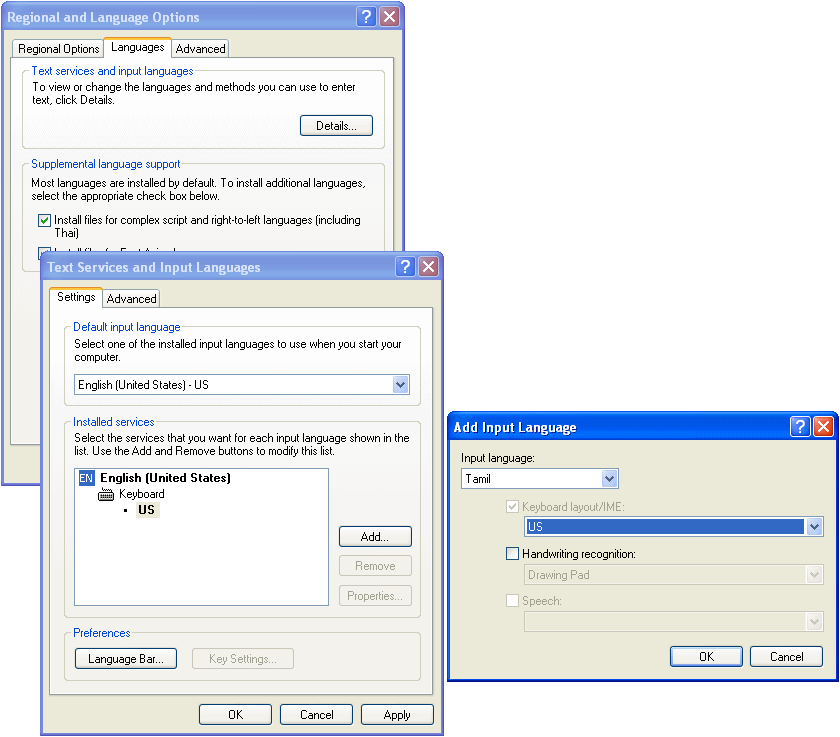
- Click 'OK'.
- Under 'Installed services' you will now find two entries 'EN' and 'TA'. The sub-heading 'Keyboard' under TA should be showing just 'US'.
(See sample screen'snapshot below for better understanding)

STEP 3:
- Click on 'Language Bar' button
- Tick the checkbox titled 'Show the Language bar on the desktop' and click OK.
- Click on 'Key Settings' button. The 'Advanced Key Settings' window will show up. Therein, under 'Key sequence' heading, you will find 'Left Alt+Shift' being the default hotkey to change the keyboard layout from one language to another. If you wish, you can click on 'Change Key Sequence' button to set/change the various hotkeys, to suit your convenience. I assume for the purpose of this document that you left the default hotkeys as they are.
(see sample screen'snapshot above for better understanding)
- Click OK.
- Click OK.
STEP 4:
- Start Azhagi. Right click the azhagi tray icon (at the right bottom corner of the screen) and keep 'Unicode Input' ticked.
- Open Ms-Word (Powerpoint)
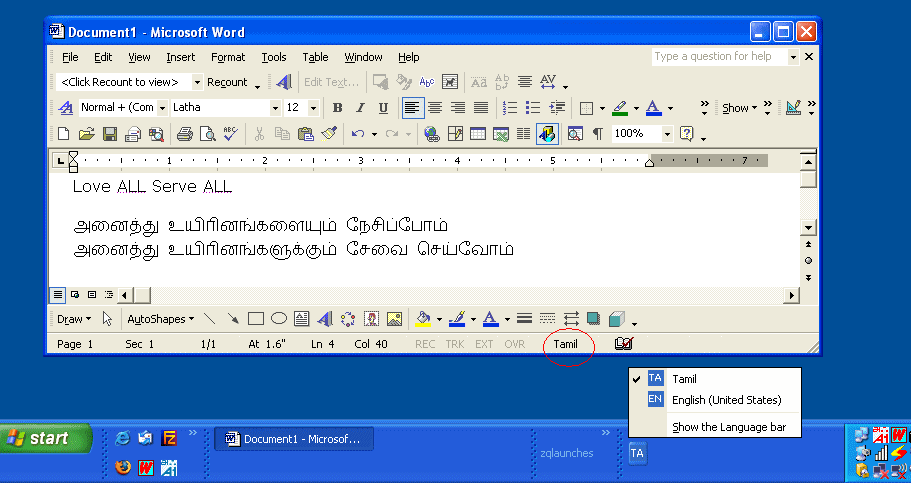
- See what's the language chosen in the language bar (a small bar floating on your desktop or stationed in your taskbar). It will be most probably EN, meaning English language. You can see 'English (U.S)' in the status bar of MS-Word (Powerpoint) too.
- Press 'Left Alt + Shift' and you will see the language in the language bar changing to TA (Tamil). You can see this change in the status bar of MS-Word (Powerpoint) too. The status bar will(SHOULD) show 'Tamil' now, in place of 'English (U.S)'. By 'status bar', I mean the bottom-most part of the MS-Word(Powerpoint) window.
- Press 'F10' and azhagi's tray icon (at right bottom corner of screen) will turn red, to indicate you are in 'Direct Typing' mode.
[Note: If you are using a LAPTOP, please read this help tip regarding F10 key, without fail.]
- Start typing in English in MS-Word (Powerpoint) and you will see it appearing in Unicode Tamil seamlessly. If it does not, then it means that you have not followed one of the steps above properly. Nothing else could be a reason.
(See sample screen'snapshot below for better understanding)
Note:
- If you wish to change your typing mode from 'Phonetic' to 'Tamil Typewriter' or 'Tamilnet99', right click on Azhagi's tray icon, move your mouse to 'Typing mode' and select the preferred layout.
- Latha is the font automatically chosen by Windows, whenever you type in Unicode. If you find a font by name 'Arial Unicode MS' in your system, you might use that too. Apart from these, there are 100s of other free Unicode fonts. For samples, details and download links, see https://azhagi.com/freefonts.php
- If you wish to change your typing mode from 'Phonetic' to 'Tamil Typewriter' or 'Tamilnet99', right click on Azhagi's tray icon, move your mouse to 'Typing mode' and select the preferred layout.
Final note: When using Azhagi or Azhagi+ to type in Unicode, 'MS Office 2000' and earlier versions may not support Unicode typing.
Typing in Tamil in Adobe InDesign, Adobe Photoshop, Adobe PageMaker, Corel's CorelDraw, etc.
Please visit pagemaker-photoshop.php
🌷🌿🤲 ஒரு நெஞ்சார்ந்த வேண்டுகோள் 🤲🌿🌷
🌷🌿🤲 A heartfelt Appeal 🤲🌿🌷
- Please note that there is no team here. I have been developing all of Azhagi's free apps from my home, amidst many hardships (including extreme health situations at times), ever since 2000, as an offering to God.
- All the support for this SatKarma – a saga of Love - lovingly provided by my better half. Ultimately, All Glory and Thanks to the Lord Almighty alone. Forever.
- All the Azhagi free apps (16 of them as of today, and more to come, God willing) are world class in nature, with many never-before-seen features, benefiting crores across the globe. All these unique apps are available to you at absolutely no cost. Peerless and Priceless. Support for them is free too — even over phone, whatsapp, etc.!!! (Thanks to the Great gopalan sir — eternally, in tons), which is unheard-of, unprecedented and unparalleled, in the field of freeware.
- So, I kindly request you to spread the word about all the Azhagi free apps, esp. in the social media, in as many ways as possible, so that more and more of the society get benefited. One best way is to host a video on one or more of the Azhagi free apps in your YouTube channel (if you own one). I have listed 36 ways totally in my spread.php page. Also, please visit share-your-love.php page and see in what all ways you can contribute to Azhagi — nonmonetarily, nonmaterially.
- By the way, since many years (I am 59 now), I have striven my best to not to watch TV, not to see movies, not to read newspapers, not to hear songs, etc. I go out of my home itself only rarely. I have worked ever so hard on Azhagi, working late night many a times. I have worked the whole night through too, now and then (extending to the next day too occasionally), even amidst my chronic health issues. My motto is to spend as much time as I can on Azhagi free apps and Azhagi free apps alone (in other words, in Azhagi SatKarma alone), until I am destined to.
- In fact, as mentioned here, I have been praying to God to give me boons like "no-Hunger, no-Sleep, no-Thirst, etc."... with the best of health condition and a serene mental state always, in order to carry out Azhagi SatKarma without any interruptions, whatsoever.
- So, after using any of Azhagi's free apps for a few days, kindly please share your feedback and testimonials for it (at my email address Birthless.Deathless@gmail.com). I would greatly appreciate it. Alternatively, you can share your feedback or testimonials in Azhagi's facebook group, if you prefer it that way. Even a one-liner saying "Everything is working well" would be of immense value. Thanks.
- You may also prefer to share your testimonial or heartfelt feelings on Azhagi in the comments section of the very loving write-up on Azhagi in 'Sri Sathya Sai Yugam' webzine. I will feel mighty glad.
- In my own personal humble opinion, sharing your testimonial for Azhagi is one other soulful opportunity for you to offer your immense Gratitude to the Divine. And, whenever you seek help from Shri. Gopalan regarding Azhagi, it is a truly blessed opportunity for you to share your gratitude and testimonial with him directly — over phone, WhatsApp, etc. Kindly remember that Azhagi apps are God's own. Not mine. In fact, I may pass away even this next second but Azhagi apps will live longer, for as long as the Divine wills.
- For examples on how users have shared their hearty/heartfelt testimonials for Azhagi in the past, please visit the testimonials page.
-
Humbly Yours - viswanathan - author, Azhagi free apps
| Sri Sathya Sai Yugam - on Azhagi || ஸ்ரீ சத்யசாயி யுகம் - ஸ்வாமியின் அழகி குறித்து |
Spread, Host, and Share
- Spread the word: Once you have started to use any of the Azhagi free apps comfortably, I kindly request you to spread the word about them, esp. in the social media, in as many ways as possible, so that more and more of the society get benefited. Thanks.
- Host a video: Please host a video demo on any of the Azhagi free apps in your YouTube channel (if you own one) — this is one of the best ways in which you can help spread the word about 'Azhagi for Mac'. I have listed 36 ways totally in my spread.php page.

- Share your love: Please visit share-your-love.php and see in what all ways you can contribute to Azhagi, non-monetarily, non-materially - and thus, share your love, ultimately.
Love ~ You can share your Love
Mr. Victor said so, in WhatsApp, in Sep 2026

The accompanying screenshot is a lovely message of gratitude and indebtedness received (on 18-Sep-2026) in WhatsApp by Gopalan sir from Mr. Victor (writing to sir for the first time) and sir's reply to him asking him to just keep sharing his love alone.
The aforesaid message from user Thiru. Victor is one other example (amongst many) of howwwwwwwwwwwwwwwww much Azhagi is useful to its users so that they voluntarily come forward with requests such as these (because of a feeling of immense gratitude and indebtedness) though they are well aware that no money is ever sought by me.
The aforesaid message from user Thiru. Victor is one other example (amongst many) of howwwwwwwwwwwwwwwww much Azhagi is useful to its users so that they voluntarily come forward with requests such as these (because of a feeling of immense gratitude and indebtedness) though they are well aware that no money is ever sought by me.
🌷🌿🤲 ஒரு நெஞ்சார்ந்த வேண்டுகோள் 🤲🌿🌷
🌷🌿🤲 A heartfelt Appeal 🤲🌿🌷
- Please note that there is no team here. I have been developing all of Azhagi's free apps from my home, amidst many hardships (including extreme health situations at times), ever since 2000, as an offering to God.
- All the support for this SatKarma – a saga of Love - lovingly provided by my better half. Ultimately, All Glory and Thanks to the Lord Almighty alone. Forever.
- All the Azhagi free apps (16 of them as of today, and more to come, God willing) are world class in nature, with many never-before-seen features, benefiting crores across the globe. All these unique apps are available to you at absolutely no cost. Peerless and Priceless. Support for them is free too — even over phone, whatsapp, etc.!!! (Thanks to the Great gopalan sir — eternally, in tons), which is unheard-of, unprecedented and unparalleled, in the field of freeware.
- So, I kindly request you to spread the word about all the Azhagi free apps, esp. in the social media, in as many ways as possible, so that more and more of the society get benefited. One best way is to host a video on one or more of the Azhagi free apps in your YouTube channel (if you own one). I have listed 36 ways totally in my spread.php page. Also, please visit share-your-love.php page and see in what all ways you can contribute to Azhagi — nonmonetarily, nonmaterially.
- By the way, since many years (I am 59 now), I have striven my best to not to watch TV, not to see movies, not to read newspapers, not to hear songs, etc. I go out of my home itself only rarely. I have worked ever so hard on Azhagi, working late night many a times. I have worked the whole night through too, now and then (extending to the next day too occasionally), even amidst my chronic health issues. My motto is to spend as much time as I can on Azhagi free apps and Azhagi free apps alone (in other words, in Azhagi SatKarma alone), until I am destined to.
- In fact, as mentioned here, I have been praying to God to give me boons like "no-Hunger, no-Sleep, no-Thirst, etc."... with the best of health condition and a serene mental state always, in order to carry out Azhagi SatKarma without any interruptions, whatsoever.
- So, after using any of Azhagi's free apps for a few days, kindly please share your feedback and testimonials for it (at my email address Birthless.Deathless@gmail.com). I would greatly appreciate it. Alternatively, you can share your feedback or testimonials in Azhagi's facebook group, if you prefer it that way. Even a one-liner saying "Everything is working well" would be of immense value. Thanks.
- You may also prefer to share your testimonial or heartfelt feelings on Azhagi in the comments section of the very loving write-up on Azhagi in 'Sri Sathya Sai Yugam' webzine. I will feel mighty glad.
- In my own personal humble opinion, sharing your testimonial for Azhagi is one other soulful opportunity for you to offer your immense Gratitude to the Divine. And, whenever you seek help from Shri. Gopalan regarding Azhagi, it is a truly blessed opportunity for you to share your gratitude and testimonial with him directly — over phone, WhatsApp, etc. Kindly remember that Azhagi apps are God's own. Not mine. In fact, I may pass away even this next second but Azhagi apps will live longer, for as long as the Divine wills.
- For examples on how users have shared their hearty/heartfelt testimonials for Azhagi in the past, please visit the testimonials page.
-
Humbly Yours - viswanathan - author, Azhagi free apps
| Sri Sathya Sai Yugam - on Azhagi || ஸ்ரீ சத்யசாயி யுகம் - ஸ்வாமியின் அழகி குறித்து |
Spread, Host, and Share
- Spread the word: Once you have started to use any of the Azhagi free apps comfortably, I kindly request you to spread the word about them, esp. in the social media, in as many ways as possible, so that more and more of the society get benefited. Thanks.
- Host a video: Please host a video demo on any of the Azhagi free apps in your YouTube channel (if you own one) — this is one of the best ways in which you can help spread the word about 'Azhagi for Mac'. I have listed 36 ways totally in my spread.php page.
- Share your love: Please visit share-your-love.php and see in what all ways you can contribute to Azhagi, non-monetarily, non-materially - and thus, share your love, ultimately.
Love ~ You can share your Love
Mr. Victor said so, in WhatsApp, in Sep 2026
The accompanying screenshot is a lovely message of gratitude and indebtedness received (on 18-Sep-2026) in WhatsApp by Gopalan sir from Mr. Victor (writing to sir for the first time) and sir's reply to him asking him to just keep sharing his love alone.
The aforesaid message from user Thiru. Victor is one other example (amongst many) of howwwwwwwwwwwwwwwww much Azhagi is useful to its users so that they voluntarily come forward with requests such as these (because of a feeling of immense gratitude and indebtedness) though they are well aware that no money is ever sought by me.
The aforesaid message from user Thiru. Victor is one other example (amongst many) of howwwwwwwwwwwwwwwww much Azhagi is useful to its users so that they voluntarily come forward with requests such as these (because of a feeling of immense gratitude and indebtedness) though they are well aware that no money is ever sought by me.
Azhagi - God's Own Apps - Videos
Videos on Tamil typing using Azhagi+


































Videos on SITA (SaiIndira TAmil) Self-Typing fonts
SITA fonts - Unique and first of their kind - Click here for full details


Videos on Indic typing using Azhagi+


Videos on AAW, AAE


Videos on Azhagi++




Video on Alt+3 vs Alt+4
Videos on Portable Azhagi+

