Document, Print, Publish, Email, Chat, Blog and Build Websites in Tamil - with utmost EASE...
Azhagi has its own in-built Unicode Editor (see snapshot below), which can work in Win 98/ME/NT/2K/XP/2K3/Vista/7. It's features will be explained in this document.
Note: To type in Unicode in Azhagi's in-built Unicode editor, you may not be required to enable Unicode FULLY. Azhagi's in-built Unicode editor may work in most Win98 systems too. Once you have generated Unicode Tamil text using Azhagi's in-built Unicode editor, you can copy/paste the Tamil text to any external application/window like Wordpad, Outlook Express, Blogs, Google/Yahoo Email Message windows etc. If the pasted text does not appear correctly in certain applications like MS-Word, Notepad etc., then Unicode might have to be enabled fully. To get to know more details on enabling Unicode, please visit azhagi.com/uniset.html. Please note that in Windows Vista (and above), Unicode gets automatically enabled FULLY, along with the OS installation.
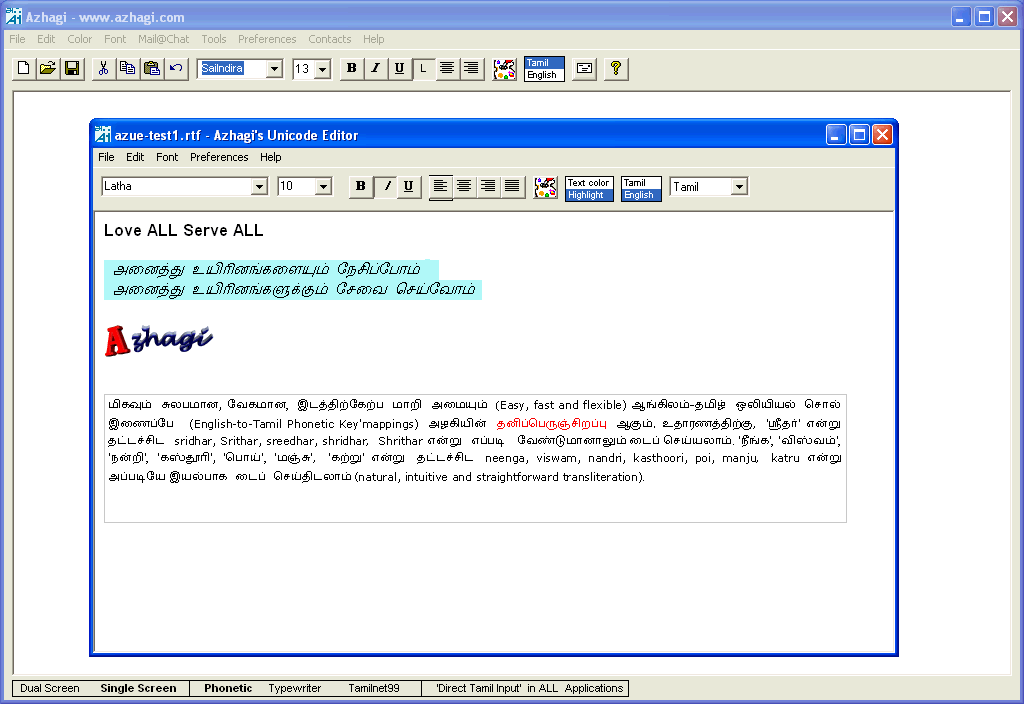
If you are NOT overly habituated to typing in MS-Word, typing/editing with Azhagi's Unicode editor offers you the greatest ease and flexibility for Unicode Tamil Input, as Azhagi's 'Extended Editing' and 'Extended Mode' are available (as in the case of the main Dual/Single Tscii editor). To know more about 'Extened Editing' and 'Extended Mode', after starting Azhagi application, click on 'Help->Contents' and in the help topics that open, navigate to 'User Manual->Tray Items Explained'. Under it, you will find explanation for these extended features.
How to start the Unicode Editor?
Note for Win98 users:
Using this editor, you can seamlessly type in Unicode and use the generated Unicode text in whichever way suitable for you. If you are unable to type in Unicode using this editor and you see only squares or question marks, please click 'Help->Unicode Help' (after starting Azhagi application) and read the contents therein patiently. Basically, you should have atleast one Unicode font (say 'Latha') in your Win98 system and your 'USP10.dll' file should be compatible with your Win98 system.
The Unicode editor has following features:
- Email
As in the main Azhagi Tscii editor, you can click on 'File->Send Mail....' to email your text by using your MAPI-compliant internal email client (say 'Outlook Express')
- Undo/Redo
You can undo/redo your editing operations. It may not exhibit the same behaviour as in MS-Word but nevertheless an effective 'undo/redo' feature still. You can use Ctrl-Z for 'undo' and Ctrl-Y for 'redo'. [The initial undo/redo limit is set as 900. I am not sure whether modifying this limit will have any effect (depending on your system configuration, particularly your RAM) on the typing/editing speed. I do not experience any effect in my machines. You can experiment at your end by changing this limit (max. of 1000 and min. of 10) by clicking the 'Preferences' menu.]
- Align 'Justify'
You can 'Full-Justify' your Text, apart from aligning left/center/right.
- Automatic URL Underlining
URLs (i.e. website addresses. e.g. 'https://azhagi.com') will be automatically identified and underlined in blue color. For this to take effect, you have to type your URL starting with 'http:' or 'www'.
- Unicode Fonts Lister
With the help of "Tools->Unicode Fonts Lister", you can easily identify and list all the Unicode fonts installed in your system. Listing of both consolidated (all Unicode fonts for all languages) and individual lists (Unicode fonts for a single Indian language) is possible.
- Add/Modify Unicode Fonts List
Just like in Azhagi's main Tscii editor, you can select your own set of Unicode fonts to be used instead of seeing a loadful of unwanted fonts in the fonts list. You do this by clicking 'Modify Fonts List' under 'Fonts' menu.
- Default Unicode Fonts List
Similarly, there is a menu item 'Set Default Fonts List' under 'Fonts' menu. This helps you to restore back the fonts list to the default fonts loaded by Azhagi on its own. Note that this process may not identify all the Unicode fonts in your system correctly. And that's why the 'Modify Fonts List' menu item is provided for you to identify and choose all Unicode fonts of your choice and form your own Unicode fonts list.
- Default Start-up Unicode Font and Size
You can choose your own start-up default Unicode font (and size) to be used, amongst the set of Unicode fonts you selected. You can do this by clicking 'Preferences' menu.
- Highlight Text
You can not only set the Text color but the Higlight color also.
- Draft File
You can quickly open a 'Draft' file by clicking on 'File->Draft' or 'F8' hotkey and start writing your draft text. When you press 'Ctrl-S' to save your file, it will be automatically saved to 'Draft.rtf'. This will come handy on many occasions (in the same way as you save files in the 'drafts' folder of Outlook Express, when you draft mails).
- Help Topics
The Help topics have been revised, particularly on the Unicode section. After starting the Unicode editor, you can click on 'Help' menu to see the extensive help on the various aspects of Unicode and Unicode tools available in Azhagi. Menu items exist to directly take you to the screens through which you 'Enable Unicode' or 'Add Tamil/US keyboard layout'.
- Points to Note
- Contrary to the main Azhagi Tscii editor which supports both Single(Full) and Dual Screen interfaces, the Unicode editor supports only Single(Full) Screen interface.
- Contrary to the main Azhagi Tscii editor which supports 3 input modes (Phonetic Transliteration, Tamil Typewriter and Tamilnet99), the Unicode editor supports Phonetic Transliteration alone.
- Contrary to the main Azhagi Tscii editor which supports both Single(Full) and Dual Screen interfaces, the Unicode editor supports only Single(Full) Screen interface.
- Those of you who dont know anything about what is Tscii, what is Unicode etc., and wish to know about them, please read 'Help->Unicode help' after starting Azhagi. You will get to understand unicode and its IMMENSE power. Like Unicode (e.g. Latha font), Tscii (e.g. SaiIndira font) is another font encoding system - simple/very'fast/beautiful/effective at all times in all applications in all Win OS-es but with much less powers and without future compatibility. I can't say more than this here, as it will go too technical.