

laptop_windows
Azhagi+ (AzhagiPlus)

 Azhagi+ is a supremely easy, fast, unique and feature-rich transliteration software. Primarily it helps one to type in 16 Indian scripts/languages* and 100+ international scripts/languages#. It is also easily extendable by the user himself or herself to type in any other language of the world, not yet covered in Azhagi+. Typing can be effected directly in any Windows application by the simple press of an hotkey.
Azhagi+ is sleek and portable. It is quite small (less than 4 MB) yet power-packed with innovative features.
Azhagi+ has possessed the fastest of all Tamil transliteration schemes, ever since its inception in 2000. You can quickly extend Azhagi+ to Transliterate (as well as Convert) in any Tamil font by using a never-before-seen feature. You can easily extend Azhagi+ to type in any language+font+keyboard combination by availing a very special feature. You can very well change the existing key mappings, have custom hotkeys to toggle between languages, utilise an in-built font viewer, avail a first of its kind Tamil font encodings converter which is extendable by the user himself/herself and do much more...
(*) Tamil, Hindi, Sanskrit, Telugu, Kannada, Malayalam, Marathi, Konkani, Gujarati, Bengali, Punjabi, Oriya, Sourashtra, Assamese, Devanagari and Grantha. Multiple font encodings and keyboard layouts are supported for Tamil.
(#) more than 100 world languages - based on Latin, Greek, Cyrillic, Hebrew and Arabic scripts. As well as IPA - International Phonetic Alphabet. One can type in diacritics too, esp. those conforming to itrans and/or iso15919.
Totally, by default: 100+ languages . 46 Tamil font encodings . 12 keyboards . 50 text files . 660 XML files . 714 'Language + Font + Keyboard' combos (686 of them for Tamil)
தமிழைப் பொறுத்தவரையில், மொத்தத்தில், இயல்திறமாய்:
அனைத்து தமிழ் Fontsகளிலும் Typing accessibility_new எல்லா தமிழ் Fontsகளிலும் Conversion accessibility_new அனைத்து தமிழ் Keyboardsகளிலும் Typing
Sleek  Portable
Unique
PortableUnique
100% Free
- Azhagi+ is 100% free - to all - for both personal and commercial use. You need not pay anything at any time.
Highlights
- Sleek (less than 4 MB) and Compact (extremely simple user interface).
- Superfast transliteration in Tamil. Easy and fast transliteration in 15 other Indian languages/scripts.
- Multiple keyboard layouts (Typewriter, Tamilnet99, etc.) and font encodings (Bamini, TAB, TAM, etc.) for Tamil.
- Indic Languages/scripts supported by default - Tamil, Hindi, Sanskrit, Telugu, Kannada, Malayalam, Marathi, Konkani, Gujarati, Bengali, Punjabi, Oriya, Sourashtra, Assamese, Devanagari and Grantha.
- International scripts supported by default - Arabic, Latin, Greek, Cyrillic, Hebrew, as well as IPA (International Phonetic Alphabet).
- Typing in 100+ world languages supported, by using the above international scripts. Please see alec.azhagi.com for full details on this.
- Totally, by default: 100+ languages . 46 Tamil font encodings . 12 keyboards . 50 text files . 660 XML files . 714 'Language + Font + Keyboard' combos (686 of them for Tamil)
- And, by using a very special feature, you yourself can easily extend Azhagi+ to effect typing in any other 'Language + Font + Keyboard' combination too.
- And, specifically for Tamil, using a never-before-seen feature, you can very quickly extend Azhagi+ to effect transliteration (as well as conversion) in any Tamil font.
- In effect, potentially, vide the above 2 features, you can Type and Convert in ANY Tamil font and Type in ANY Tamil keyboard layout
மொத்தத்தில், இயல்திறமாய், அனைத்து தமிழ் Fontsகளிலும் Typing accessibility_new எல்லா தமிழ் Fontsகளிலும் Conversion accessibility_new அனைத்து தமிழ் Keyboardகளிலும் Typing
- Portable version exists too. No need to install it. Extract and start using it straightaway. Carry it in your pendrive too and thus use Azhagi+ in any Windows system from your pen-drive itself.
- Has the fastest Tamil transliteration scheme (ever since 2000) and a clear-cut transliteration scheme for other Indian languages.
- One-step process - to type in Unicode in Indian languages (Tamil, Hindi, Telugu, Bengali, etc.) in ANY application:
MS Word, Gmail, Google Docs/Sheets/Etc., Facebook, Whatsapp, Quora, Skype, Blog, Twitter, Instagram, Photoshop, InDesign, PageMaker, CorelDraw, Outlook, Excel, PowerPoint, LibreOffice/OpenOffice apps, etc., etc., etc.
- Easily switch between typing English and different Indian languages by the simple press of a single hotkey.
For e.g., press Ctrl+1 to type in Hindi, Ctrl+5 to type in Malayalam, Ctrl+9 to type in Bengali and so on.
- In-Built Tamil Unicode Editor
- For Tamil, apart from providing 'PhoneticTransliteration' and UserDefinedPhonetics for typing in Unicode, Azhagi+ supports typing in various other Non-Unicode font encodings and keyboards too. The full list of supported font encodings is as follows:
- Unicode (யூனிகோட், ஒருங்குறி)
- SaiIndira (சாய்இந்திரா)
- TSCII (திஸ்கி)
- Bamini (பாமினி), TamilBible (தமிழ் பைபிள்)
- TAM (தாம், டேம்)
- TAB (தாப், டேப்)
- Baamini (பாமினி 2) (not the same as Bamini)
- Vanavil (வானவில்)
- STMZH (செந்தமிழ்) [same as RGB Tamil fonts]
- Shreelipi (ஸ்ரீலிபி)
- LT-TM (எல்.டி-டி.எம்) [same as IndoWord Tamil fonts]
- Shree (ஸ்ரீ)
- Ka (க) [same as JF Tamil fonts]
- Chenet Platinum (செனட் ப்ளேட்டினம்)
- TACE (டேஸ்)
- Gee_Tamil (ஜீ_தமிழ்)
- ELCOT-Bilingual (எல்காட்-இருமொழி)
- ELCOT-ANSI (எல்காட்-ஆன்ஸி)
- APT_Sangam (ஏ.பி.டி. சங்கம்)
- KrutiTamil (க்ருதி தமிழ்)
- Dev (தேவ்)
- Ganesha (கணேஷா)
- Lakshmi (லக்ஷ்மி)
- TA-Arul (டி.ஏ. அருள்)
- Amudham (அமுதம்)
- TM-TTValluvar (வள்ளுவர்)
- Elango (இளங்கோ)
- SunTommy (சன்டாமி)
- Roja (ரோஜா)
- Priya (ப்ரியா)
- TmlCheran (சேரன்)
- Pandian (பாண்டியன்)
- TBoomiS (தினபூமி)
- Diamond (டைமண்ட்)
- DCI+Tml+Ismail (டி.சி.ஐ. தமிழ் இஸ்மாயில்)
- Periyar (பெரியார்)
- Mylai Plain (மயிலை)
- MCL Kannammai (எம்.சி.எல். கண்ணம்மை)
- Needhimathi (நீதிமதி)
- Sashi (சஷி)
- Avaice Jasmine (ஜேஸ்மின்)
- Tamil-Aiswarya (ஐஸ்வர்யா)
- Adhawin-Tamil (ஆதவின்)
- KavipPriya (கவிப்பிரியா)
- Vikatan (விகடன்)
- Kalpesh Dotted (கல்பேஷ் டாட்டட்)
- Plus, Agathiar, Anangu, Akruti, Dinak, IndoWeb, Jeeva, Kalakal, Mp, Mannar, Nc_Baamini, ShreelipiNxt, TMFlorida, Tnames and US font encodings too.
- So, totally, 60 Tamil font encodings supported, by default. And, you can easily and readily add support for any number of extra font encodings by yourself or by contacting Gopalan sir.
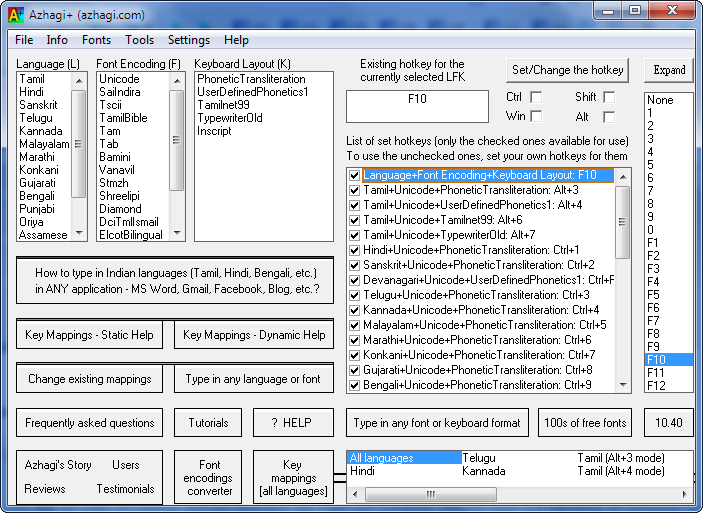
- Any hotkey (with any combination of alt, shift, win and ctrl modifiers) can be set for typing in any application in any language, any LFK.
- Additionally, a global hotkey (F10 by default) can also be set, common for all languages.
- Change the existing key mappings - add, delete, modify, customize.
- Create and add your own keyboard layouts with your own key mappings (or with the key mappings of any Indian language font you are accustomed to) and start typing in them.
- Via the above two very special features, Azhagi+ is extendable to effect typing in ANY world language - in ANY font, in ANY keyboard layout.
- Specifically for Tamil, Azhagi+ provides a never-before-seen facility by which one can extend Azhagi+ to transliterate (and also convert) in 'ANY non-Unicode Tamil font' just by creating a simple text file of about 60 lines itself!
- In-built font viewer with some cute features.
- A first of its kind Tamil fonts converter tool.
- Dynamic (see-as-you-type) help (on-screen preview) for all 'key mappings'.
- Facility to type in MS-Word in WinXP even without enabling Unicode fully.
- In-built help.
- Tray icons.
Features
- Small (less than 4 MB) and Sleek (extremely simple user interface; the simplest perhaps, considering all that one can do with Azhagi+).
- Portable version exists too. In portable mode, no need to install Azhagi+. Download, extract and start using it straightaway in your desktop, laptop, etc. Extract and carry it in your pen drive too and thus use Azhagi+ in any Windows system from your pen drive itself.
- Innovative Tamil transliteration scheme - natural, intuitive and flexible - in effect, the easiest and fastest - enabling you to type more in less time - thus increasing your productivity multifold.
- An easy, clear-cut, standard and uniform transliteration scheme for all other Indian languages.
- One-step process to effect direct typing/transliteration in ANY Windows application* in Tamil, Hindi, Sanskrit, Arabic, Telugu, Kannada, Malayalam, Marathi, Konkani, Gujarati, Bengali, Punjabi, Odia, Assamese, Sourashtra, Grantha, Devanagari, Latin, Greek, Cyrillic, Hebrew and IPA (International Phonetic Alphabet). Easily extendable, by the user himself/herself, to type in any other language/script of the world too.
(*) MS Word, Google Docs/Sheets/Slides/Forms/Etc., Facebook, Whatsapp, Quora, Twitter, Instagram, Photoshop, InDesign, PageMaker, CorelDraw, Gmail, Skype, Blog, Outlook, Excel, PowerPoint, LibreOffice Writer/Calc/Impress/Etc., OpenOffice Writer/Calc/Etc., etc., etc., etc.
- Typing in 100+ world languages supported, by using the international scripts (Arabic, Latin, Greek, Cyrillic and Hebrew) abovementioned. Please see alec.azhagi.com for full details on this.
- Totally, by default: 100+ languages . 46 Tamil font encodings . 12 keyboards . 50 text files . 660 XML files . 714 'Language + Font + Keyboard' combos (686 of them for Tamil)
- And, by using a very special feature, you yourself can easily extend Azhagi+ to effect typing in any other 'Language + Font + Keyboard' combination too.
- And, specifically for Tamil, Azhagi+ provides a never-before-seen facility by which one can extend Azhagi+ to transliterate (as well as convert) in ANY non-Unicode Tamil 'font OR font encoding' just by creating a simple text file of about 60 lines itself!
- In effect, potentially, vide the above 2 features, you can Type and Convert in ANY Tamil font and Type in ANY Tamil keyboard layout
மொத்தத்தில், இயல்திறமாய், அனைத்து தமிழ் Fontsகளிலும் Typing accessibility_new எல்லா தமிழ் Fontsகளிலும் Conversion accessibility_new அனைத்து தமிழ் Keyboardகளிலும் Typing
- Easy switching between typing English and different Indian languages by the simple press of a single hotkey. For e.g., press Ctrl+1 to type in Hindi, Ctrl+5 to type in Malayalam, Ctrl+9 to type in Bengali and so on.
- For Tamil, apart from its own unique (easiest and fastest) PhoneticTransliteration (Alt+3 hotkey) and UserDefinedPhonetics (Alt+4 hotkey - for users accustomed to the phonetics scheme employed in software like eKalappai, NHM Writer, etc.) for typing in Unicode, Azhagi+ supports typing in 40+ other Tamil font encodings too. The entire list of supported default font encodings is as follows:
- Unicode (யூனிகோட், ஒருங்குறி)
- SaiIndira (சாய்இந்திரா)
- TSCII (திஸ்கி)
- Bamini (பாமினி), TamilBible (தமிழ் பைபிள்)
- TAM (தாம், டேம்)
- TAB (தாப், டேப்)
- Baamini (பாமினி 2) (not the same as Bamini)
- Vanavil (வானவில்)
- STMZH (செந்தமிழ்) [same as RGB Tamil fonts]
- Shreelipi (ஸ்ரீலிபி)
- LT-TM (எல்.டி-டி.எம்) [same as IndoWord Tamil fonts]
- Shree (ஸ்ரீ)
- Ka (க) [same as JF Tamil fonts]
- Chenet Platinum (செனட் ப்ளேட்டினம்)
- TACE (டேஸ்)
- Gee_Tamil (ஜீ_தமிழ்)
- ELCOT-Bilingual (எல்காட்-இருமொழி)
- ELCOT-ANSI (எல்காட்-ஆன்ஸி)
- APT_Sangam (ஏ.பி.டி. சங்கம்)
- KrutiTamil (க்ருதி தமிழ்)
- Dev (தேவ்)
- Ganesha (கணேஷா)
- Lakshmi (லக்ஷ்மி)
- TA-Arul (டி.ஏ. அருள்)
- Amudham (அமுதம்)
- TM-TTValluvar (வள்ளுவர்)
- Elango (இளங்கோ)
- SunTommy (சன்டாமி)
- Roja (ரோஜா)
- Priya (ப்ரியா)
- TmlCheran (சேரன்)
- Pandian (பாண்டியன்)
- TBoomiS (தினபூமி)
- Diamond (டைமண்ட்)
- DCI+Tml+Ismail (டி.சி.ஐ. தமிழ் இஸ்மாயில்)
- Periyar (பெரியார்)
- Mylai Plain (மயிலை)
- MCL Kannammai (எம்.சி.எல். கண்ணம்மை)
- Needhimathi (நீதிமதி)
- Sashi (சஷி)
- Avaice Jasmine (ஜேஸ்மின்)
- Tamil-Aiswarya (ஐஸ்வர்யா)
- Adhawin-Tamil (ஆதவின்)
- KavipPriya (கவிப்பிரியா)
- Vikatan (விகடன்)
- Kalpesh Dotted (கல்பேஷ் டாட்டட்)
- Plus, Agathiar, Anangu, Akruti, Dinak, IndoWeb, Jeeva, Kalakal, Mp, Mannar, Nc_Baamini, ShreelipiNxt, TMFlorida, Tnames and US font encodings too.
- So, totally, 60 Tamil font encodings supported, by default. And, you can easily and readily add support for any number of extra font encodings by yourself or by contacting Gopalan sir.
- Typing in Indian languages in MS-Word (and MS-Powerpoint) in Windows XP even without enabling Unicode fully (i.e. even without enabling the option "Install files for complex script ..." in the control panel applet 'Regional and Language Options'). As of now, this is a unique capability of Azhagi+.
- In-built Unicode editor for Tamil.
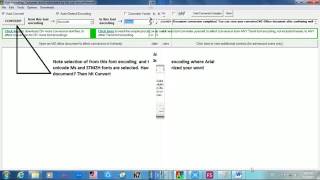
- A first of its kind Tamil fonts converter tool among freeware. It not only does 'plain' text conversion but does conversion directly inside 'formatted' MS Office documents also.
- Using a never-before-seen feature, the 'Tamil fonts converter' can be easily extended by the user himself/herself, to effect conversion from ANY Tamil font encoding (not included in the 'Converter' as of now), to ANY other Tamil font encoding.
- 'See-As-You-Type' dynamic help (on-screen preview) for all key mappings. As such, for all LFKs. The 'dynamic help' tool itself has it's own set of friendly and useful features.
- Two useful and powerful features:
 Change existing key mappings.
Create your own keyboard layouts.
Yes, the facility to quickly modify existing key mappings for any language in any way. 'Modify' means all four of 'add', 'change', 'delete' and 'customize'.
And, the facility to easily create your own keyboard layout - that is, an entirely new keyboard layout consisting entirely of your own key mappings (or the key mappings of any language's font you are accustomed to) - and start typing in the same.
- Via the above two features, Azhagi+ is easily extendable to effect typing in any language+font+keyboard combination. Basically, this is achieved by a very simple process of just editing an XML text file in Notepad.
- In-built font viewer with some cute little features. It will be of great assistance while creating the aforesaid 30 lines file too.
- Option to set your own separate hotkey (in any combination of Alt/Ctl/Shift/Win modifiers) for typing in each of the language+font+keyboard (lfk) combinations.
- Option to set a global hotkey too, common for all language+font+keyboard combinations. And thus, the ease of having both a global hotkey (F10 by default) and also a specific hotkey for typing in each language+font+keyboard combination.
- Apart from the appplication's tray icon, display of an additional system tray icon whenever an hotkey is pressed - to indicate the language and also to provide some additional information (the language+font+keyboard combination in which you are typing, etc.) on hover.
- Incorporation to a tee, all the 'TamilNet99' specifications. Details here.
- Various other options (autostart with Windows, close to system tray, etc.) to customize your experience of operating Azhagi+.
- In-built help with a corresponding online version.
- Extensive online help is available via very many other web pages too. Just to name three of them alone here - helptips.php, oper-plus.php (the full 'operating manual' of Azhagi+), the XMLs (all the key mappings neatly presented in individual XML files). Furthermore, you can readily get answers to any of your queries on any aspect of Azhagi+ through Azhagi's Facebook Group which is Azhagi's online support forum.
Features of the in-built Tamil font encodings 'Converter'
- Its a first of its kind Tamil font encodings 'Converter' tool among freeware (and maybe among payware too). It not only does plain text conversion but does conversion of formatted texts too, 'directly inside MS Office documents' itself.
- Using a never-before-seen feature, the 'Converter' can be easily extended by the user himself/herself, to effect conversion from ANY Tamil font encoding (not included in the 'Converter' by default), to ANY other Tamil font encoding.
- Unicode to Non-Unicode (SaiIndira, TSCII, TAB, TAM, Bamini & TamilBible, Vanavil, Shreelipi, STMZH, LT-TM [same as IndoWord], Gee_Tamil, DCI+Tml+Ismail, SunTommy, ELCOT-ANSI, ELCOT-Bilingual, Diamond, Amudham, Ka, Shree, Mylai Plain, TACE, Elango, Periyar, Priya, Chenet Platinum, KrutiTamil, TM-TTValluvar, Roja, MCL Kannamai, Baamini [not the same as Bamini], Needhimathi, Pandian, TBoomiS, APT-Sangam, Dev, TA-Arul, Sashi, Ganesha, Lakshmi, Tamil-Aiswarya, Adhawin, TmlCheran, Avaice Jasmine, KavipPriya, Vikatan, etc.), Non-Unicode to Unicode, Non-Unicode to Non-Unicode - all 3 types of conversions.
- Font encodings conversion directly inside MS Office Documents, thereby helping you retain all your formatting (Bold/Italic/Underline, color, justifications, tables, etc.) and English texts.
- Note: Right now, only MS-Word documents are supported. Support for MS-Excel and MS-PowerPoint will be provided later.
- Note: Right now, only MS-Word documents are supported. Support for MS-Excel and MS-PowerPoint will be provided later.
- Option to convert the whole MS Office document (OR) only the selected text in the document.
- Auto-detection of Tamil font encodings.
- Auto-conversion of Tamil font encodings.
- Extremely fast and accurate conversion.
- Setting of a suitable Tamil font (if available in the system) for both the text to be converted and the converted texts.
- Options to consider 'ர், ரி, ரீ' and 'Vowel Signs'.
- Provision of the facility by which whatever font encodings one finds now (and also find added later) in the converter, one can automatically start "typing in those font encodings too" - directly in all applications.
- And more...
- Note: As of now, the various options/settings provided in the 'Converter' retain their values only for the current session. In other words, whenever you restart Azhagi+, the settings will start with their default values.
- Please do read this related facebook post for more details on the 'Converter'.
- Please visit tamil-fonts-converter.php to view video demos of the 'Converter'.
Operating Systems
- Azhagi+ runs on all of the following operating systems:
Windows XP, Windows Vista, Windows 7, Windows 8, Windows 8.1, Windows 10 and Windows 11 (both 32 bit and 64 bit)
Downloads
- Download link for CURRENT gpr (general public release) version of Azhagi+ is available in the home page of azhagi.com itself.
- Download links for BETA versions of Azhagi+ (along with change history) are available at sbetas.php.
- Earlier versions of Azhagi+ can be downloaded from here.
- Portable version of Azhagi+ can be downloaded from here.
- Note (for WinXP users alone): If you intend to use the portable version of Azhagi+, please read this without fail.
Changelog
- The changes history for each version of Azhagi+, since its inception, can be read at sbetas.php.
How to operate?
- Please visit oper-plus.php for step-by-step instructions on how to install Azhagi+, how to operate it and for many other important info.
- For answers to certain specific questions/doubts, kindly visit helptips.php
- You can readily get answers to any of your queries on any aspect of Azhagi+ through Azhagi's Facebook Group which is Azhagi's online support forum.
Screenshot
-
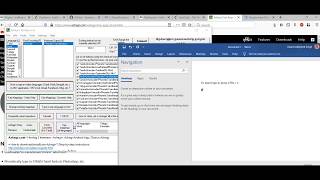
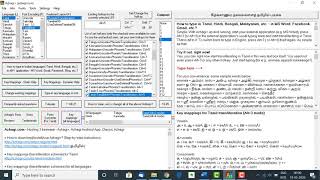
Note: The screenshot below is that of Azhagi+ 10.40
Differences
- A tabulated list of differences between classic Azhagi and Azhagi+ (AzhagiPlus) can be found here.
- If you are an user of classic Azhagi and not yet tried out Azhagi+, please read the benefits of Azhagi+ (when compared to classic Azhagi) here.
Portable software - their GREAT benefits

- No installation needed
A software is "PORTABLE" means you need not install the software in your system (by clicking any setup.exe file) - in order to use it. You can straightaway start using it, even without installing it in your system.
- Just unzip (extract) and start using
For example, Portable Azhagi+ means, you can just unzip* the downloaded "AzhagiPlus-Portable.zip" to any directory (say "C:\PortableApplications\AzhagiPlus-Porto") and straightaway start using it by clicking "C:\PortableApplications\AzhagiPlus-Porto\Azhagi-Plus.exe".
(*) If you are NOT tech-savvy about zip files and the operations of zipping, unzipping (extracting), etc., you can read some tutorials on the same. There are lots of them available on the net. You can read the one which suits you. As for me, I found this tutorial (with screenshots) on unzipping/zipping to be very lucid and easy. If you wish to use a software for trying out unzipping (extracting), perhaps you can opt to try out 7-zip. It is a 100% free software for one's zipping/unzipping needs.
- Use from pen-drive in office environments
Since AzhagiPlus is portable, you can carry it in your pen-drive (or similar device) and straightaway start using it in any system. No installation needed to work with it in any system. This is immensely useful in office environments where execution of 'setup.exe' of extraneous applications is not allowed in employees' systems. In such cases, one can plug in one's pen-drive into the system and start using Azhagi+ straightaway (if you already have 'AzhagiPlus-Portable.zip' unzipped to some directory in your pen-drive).
- Testing out is just a snap
Portable softwares (for e.g. please see portablefreeware.com) have become immensely popular nowadays since they remove the great hassle of installing an application first in order to work with it and then again go through the process of uninstalling it when you do not require the application. In case of a portable software, installing and uninstalling is just a snap. For e.g. if you wanted to uninstall a portable software called 'xyzxyz', you just need to delete it's directory. That is all to it. For e.g. if you unzipped 'xyzxyz' to "C:\PortableApplications\xyzxyz" earlier, in order to uninstall it, you just have to delete the directory 'xyzxyz' (i.e. 'C:\PortableApplications\xyzxyz') under "C:\PortableApplications\".
- Same settings - Anywhere Anytime
With portable softwares, the various settings you effect to customise your use of a particular portable software remain the same in whichever system you use that software. That means, you can straightaway start using your portable software with the same settings, in any system. In non-portable softwares, most often this is not the case or most often it is not as straightforward as in the case of portable softwares.
- No trace, Increased productivity
Portable softwares do not leave any trace in your system when uninstalled (unlike in the case of the non-portable softwares, some of which may leave traces of them in the system registry and other folders even after uninstalling - which in due course may lead to your system slowing down or your system storing unaccessed/unused files, unnecessarily). Further, if you carry your portable software always in your pen-drive, then any system is not even aware of your software, unless and until you access your software from the pen-drive plugged into that system. Thus, with portable softwares, Everything becomes plug and play, with increased productivity and ease of use.
NOTE
- Please do note well that the feature in Azhagi+ which enables one to type in the encoding of any Indian/world language's font has been provided by me with a noble intention to allow users to have as less hassles as possible while typing (transmitting, etc.) texts in various Indian/world language font encodings. It is well assumed that the users who use my software Azhagi+ (AzhagiPlus) to type in the encoding of any particular proprietary font do indeed own (i.e. legally have) that particular font.
- Please do note well that the feature in Azhagi+ which enables one to effect Tamil font encodings conversion has been provided by me with a noble intention to allow users to have as less hassles as possible while dealing with texts in various Tamil font encodings. It is well assumed that the users who use my software Azhagi+ (AzhagiPlus) to effect conversion from/to any particular proprietary Tamil font do indeed own (i.e. legally have) that particular Tamil font.